

Key takeaways:
|
What are Claude Skills?
A skill is a small package of instructions that shows Claude how to handle a specific job. Think of it as a reusable playbook that keeps your examples, rules, and preferences in one place.
Claude Skills are predefined instruction manuals that store the context and guidelines for a task. Instead of pasting the same prompt again and again, you teach Claude once and reuse the prompt effortlessly whenever you need it.
Under the hood, a skill is a folder. Inside it, you’ll find:
- SKILL.md file (required) – the main skill file, written in plain Markdown with a short settings block at the top called the frontmatter (the part that tells Claude what the skill does and when to use it).
- scripts/ (optional) – code Claude can run, for example, a Python file that calls an external API.
- references/ (optional) – extra reference files and bundled resources Claude opens only when needed.
- assets/ (optional) – templates, fonts, or icons used in the output.
So skills are specialized folders containing instructions and, when useful, scripts. They turn your domain knowledge and background knowledge into something Claude can apply on demand.
How the skills system works
Claude doesn’t read your whole skill every time. It uses progressive disclosure: it loads information in layers and pulls in only what each task needs.
Loading every detail up front would mean overwhelming Claude’s context window (the limited space it can work with at once) with text you don’t need, which slows things down. Loading in layers keeps Claude fast and the answers sharp.
There are three layers:
- The label. A short block at the top of the skill (the frontmatter) stays in Claude’s system prompt the whole time. It’s tiny – just the skill name and a one-line note on what the skill does and when to use it. That’s how Claude knows the skill exists without opening it.
- The instructions. Claude opens the main SKILL.md file only when it decides the skill is relevant to your task.
- The extras. Linked reference files load last, and only if Claude actually needs them.
Here’s what happens when you work. It starts with your message. Claude reads that user message, checks the available skills, and picks the relevant skills that match the user’s intent – what you’re actually trying to do.
When one fits, the skill appears, and Claude loads its instructions on the spot, as dynamic context. Only Claude handles this – you don’t manage anything. This skill discovery runs quietly in the background.
Built-in skills vs. custom skills
You don’t start from zero. Claude comes with built-in skills you can use right away, and it loads the relevant ones automatically when a task needs them.
The built-in set covers a lot of everyday work: document creators for Word, PowerPoint, Excel, and PDF, plus a frontend-design skill for clean web layouts. They handle many everyday jobs – and even some complex tasks – with no setup from you. In Claude Code, you also get built-in Claude commands like /review for a quick code review.
Then come custom skills – your own skills, built around your workflow. These are the ones that turn Claude into your assistant. You can keep them to yourself or share them with your team. Most teams run a mix: individual skills for personal tasks and shared ones for the group.
Keep one skill or build many, just don’t go overboard (more on that below).
Where do you find the skills?
You can reach your skills in two places.
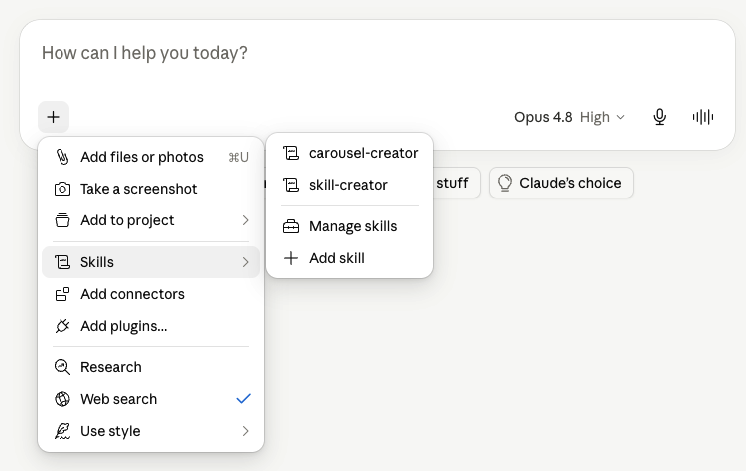
1. The quickest one is the chat box. Click the + button next to the chat box and choose Skills. A list opens. From there, you can run a skill, manage the ones you have, or add a new one.
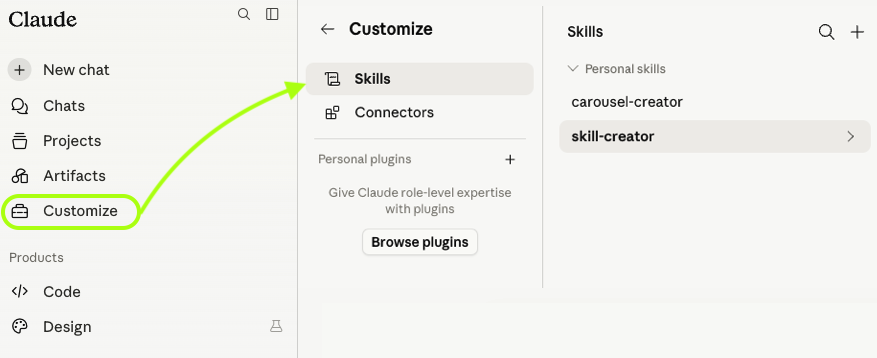
2. You can also go to Customize → Skills. This is where you also manage them.
Skills vs. Claude’s other tools
You’ll see these names inside Claude. Here’s the quick difference.
| Tools Claude | What it is | When you use it |
| Skills | Saved instructions for how Claude does a task | Repeating the same kind of work |
| Projects | A workspace that remembers the files and context you add | Keeping one ongoing topic in one place |
| Artifacts | Interactive documents or tools shown next to the chat | Getting a usable file, app, or doc out of a chat |
| Cowork | A desktop agent that works on the files on your computer | Hands-off, multi-step jobs on your own files |
| Code | An agent for coding and building, run from the terminal | Software and developer work |
💡 Are you a marketer? Check how to use Claude specifically for email campaigns, customer insights or social media content. Read our article: Claude AI for marketing: use cases, tips, and how to get real results.
Claude Skills vs. Custom GPTs and Gems
This is where many users get confused, so let’s clear it up. Custom GPTs (from OpenAI) and Gems (from Google) are separate assistants you switch into, while a Claude Skill loads into the chat you already use, and you can run multiple skills at once.
| What it is | Setup | Best for | |
| Claude Skills | A portable instruction pack that loads into the chat you’re already in | No, it comes to you | Doing one task the same way, anywhere |
| Custom GPTs / Gems | A separate saved assistant in ChatGPT or Gemini | You open it manually | Building a dedicated bot for one purpose |
How to create your own skill
You can create skills in two ways: with Claude’s help or on your own.
But first, turn the feature on. Skills need a setting called Code execution and file creation. You find it in Settings → Capabilities. It lets Claude run code and build files, which is how a skill actually does its job. You switch it on once.
On a Team plan it’s usually on already. On an Enterprise plan, your admin turns it on for everyone first.
Create your skill with Claude
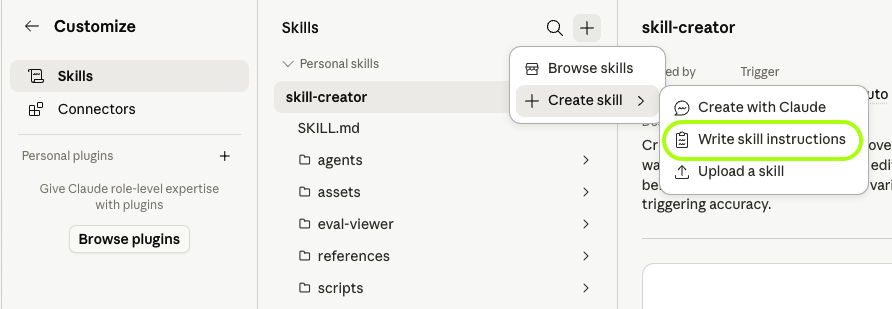
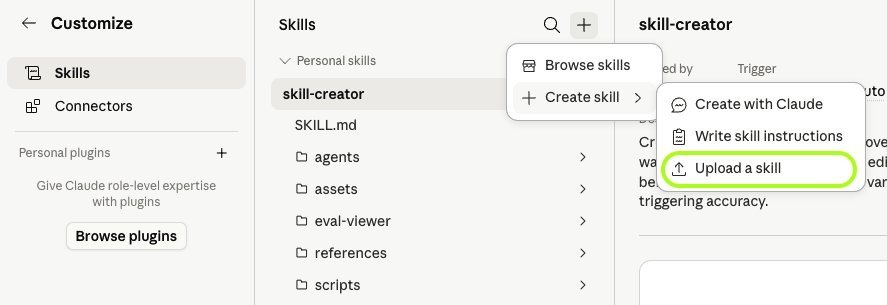
The fastest path: Go to Customize → Skills → + (Add skill) → Create skills → Create with Claude. You build the skill in a normal chat. Claude asks questions, writes the file, and suggests trigger phrases.
You can also just type in any chat: “Use the skill-creator skill to help me build a skill for [your use case].” Expect 15–30 minutes for your first working skill.
(Skills follow an open standard, sometimes called Agent Skills, so what you build isn’t locked to one app. It works across the Claude apps – web, desktop, and Claude Code – and the open standard means other tools can adopt it too.)
Write your own skill instructions
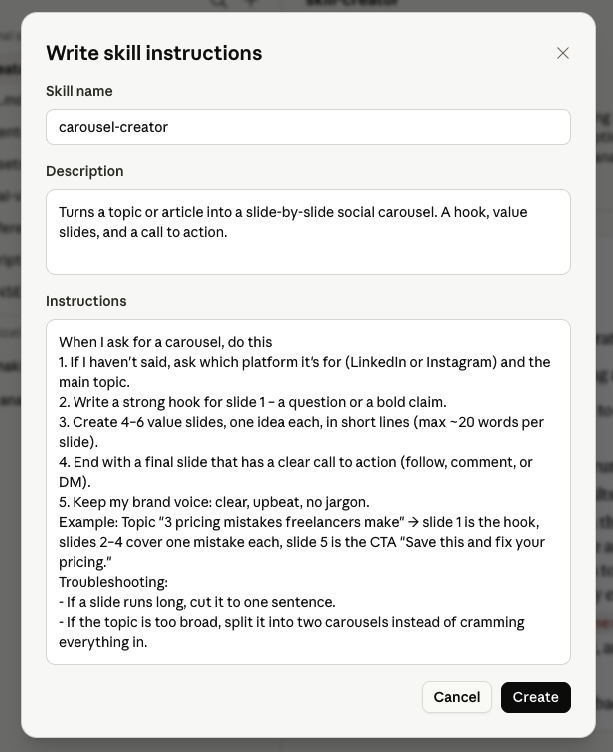
If you’d rather build by hand, go to Customize → Skills → + (Add skill) → Create skills → Write skill instructions.
- Write the SKILL.md frontmatter (the block between the [—] lines). This short block is the most important part, because it’s how Claude decides whether to load your skill.
- Write a good skill description. It should say two things: what the skill does and when to use it. Include the phrases your user request would actually contain. A vague description is the number-one reason a skill never triggers.
- Write detailed instructions below the frontmatter, in natural language. Number the steps, give an example, and add a short troubleshooting note. This is where you teach Claude your exact process.
Example:
- Upload skill
You can also upload your skills. Go to Customize → Skills → + (Add skill) → Create skills → Upload skill.
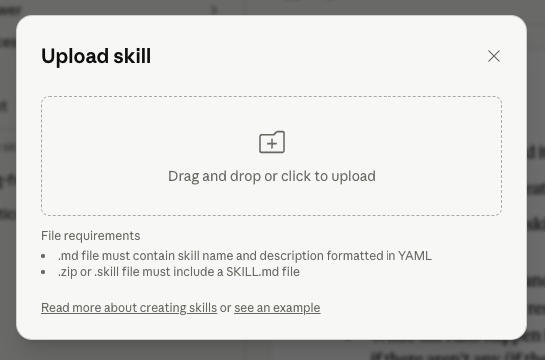
Your file needs to be one of these:
- .md file must contain skill name and description formatted in YAML
- .zip or .skill file must include a SKILL.md file
Manage your skills
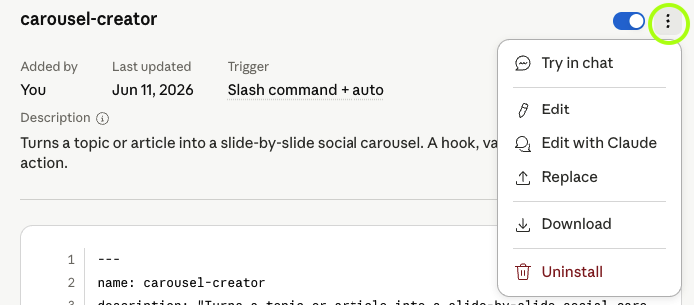
Once your own skill is on the list, you can:
- Try in chat: test the skill right away in a new conversation.
- Edit: change the name, description, or instructions yourself.
- Edit with Claude: ask Claude to improve the skill for you.
- Replace: swap in a new file if you’ve made bigger changes outside Claude.
- Download: save a copy of your skill to your computer.
- Uninstall: remove the skill from your skills list.
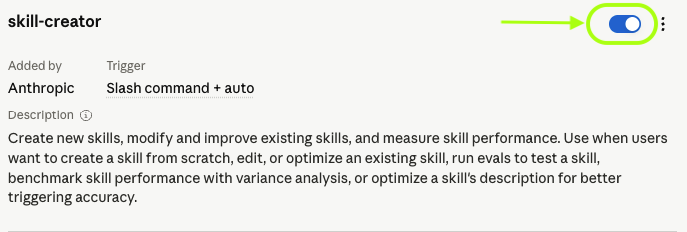
You can also toggle a skill on or off with the switch at the top – handy when you want to silence one for a while without deleting it.
How to use Claude Skills
Using skills is simple once they’re set up.
- Run a skill in two ways.
- Manually: type / followed by the skill name (for example, /carousel-creator or /client-proposal).
- Automatically: describe what you want in natural language (for example, “make a LinkedIn carousel about freelance invoicing tips” or “prepare a proposal for a client who needs a website redesign”), and Claude picks the matching skill and runs it for you.
- Let Claude do the work. Once the skill runs, Claude follows its steps to perform tasks for you – writing a document, filling in a form, or pulling data from another tool. If a step needs a tool call or code execution, Claude handles that in the background. You just see the result.
- Stay in control. You can switch individual skills on or off in your settings.
Real use cases for everyday freelancers
You don’t need to be a developer to use Claude Skills. Here are skills that fit common freelance work:
- Copywriters: a skill that captures a client’s tone of voice, so newsletters, landing pages, and product descriptions all sound on-brand every time.
- Designers: the frontend-design skill turns a written spec into a clean, on-brand layout.
- Virtual assistants: a skill that builds invoices or monthly reports in your exact format, with the same headers and totals each time.
- Researchers and analysts: a skill with your research method baked in, so every brief follows the same structure.
- Agencies: package your standard operating procedures into a few dedicated skills – write internal communications, client reports, and onboarding docs the same way every time – so a new teammate gets consistent results on the first try.
The pattern is always the same: take a job you often do, define clear input and output signals, and the skill handles it the same way every time – so you never type the same prompt twice. It remembers your method, so you don’t have to dig back through the conversation history or paste your instructions again.
Share skills with your team
Skills are especially useful in teams. You can share skills with coworkers on Team and Enterprise plans, or share them with the whole organization so everyone works from the same playbook.
- Team plans: skills are enabled by default at the organization level.
- Enterprise plans: an admin enables skills in organization settings first.
This turns your best workflows into shared assets. Instead of one person knowing how the monthly report is done, the skill knows, and anyone can run it.
How to use skills safely
Skills are powerful, so treat them like software.
- Only install skills from trusted sources. A skill can include scripts and run code in Claude’s environment.
- Review the contents before enabling anything from a less-trusted source.
- If you use skills from external sources, be aware of two risks: prompt injection (hidden instructions that make Claude do things you didn’t ask for) and data exfiltration (malicious code that quietly leaks your data).
The rule is simple: if you wouldn’t run a random script on your laptop, don’t run a random skill either.
Best practices that actually help you build skills worth using
- Build a few good skills. A handful of optimized, well-named skills beats a cluttered skill folder you can’t trust.
- Package repeat work into standard operating procedures. If you explain it more than twice, it’s a skill.
- Give clear examples. Examples help Claude learn your style and improve results faster than long descriptions.
- Use structure in your prompts. XML tags group your prompt into clean sections, and a short system prompt sets global rules for how Claude should behave.
- Assign a role. Telling Claude “you are our senior copy editor” lifts task quality.
One more thing for 2026: clear, well-structured content matters in an AI search world. The same habits that make a good skill – clear instructions, clean structure, no fluff – also make your work easier for AI to understand and reuse.
How Useme fits in
Claude Skills make individual freelancers and small teams faster and more consistent. Useme makes the business side of that work just as smooth.
Freelancers: Create a free Useme account and add the Claude tag to your profile so clients searching for Claude skills can find you. Then check the Useme job board for gigs where Claude is a required skill – and get hired for them.
Clients: Hire verified, Claude-skilled freelancers worldwide and let Useme handle the contract, invoicing, and payment.
FAQ
- Do I need to know how to code to use Claude Skills? No, you can use built-in skills and the skill creator without writing any code. Coding only helps if you want a skill that runs custom scripts.
- Where do my skills live? In the Claude app or browser version, you add them under Customize → Skills (or via + → Skills in the chat box).
- How is a skill different from a normal prompt? A prompt is one-off. A skill is saved, reusable, and loads automatically when your request matches – so you don’t repaste the same prompt every time.
- Can I share skills with my team? Yes, on Team and Enterprise plans you can share skills with colleagues or deploy them organization-wide.
- Are Claude Skills safe? They are, as long as you only install skills from trusted sources and review anything from elsewhere. Skills can run code, so treat them like any other software.
- Do skills work in Claude Code, the desktop app, and the web? The same skill is portable and runs across Claude.ai, the Claude desktop app, and Claude Code.
Helpful links:
- Use Skills in Claude (official help) – Anthropic’s step-by-step guide to turning skills on and using them.
- The Complete Guide to Building Skills for Claude (PDF) – Anthropic’s in-depth guide, if you want to go beyond the basics.
This article is for general information only and is current as of June 2026. Claude’s features and plans may change – check official settings and documentation for the latest details. Nothing here is legal, financial, or professional advice. We used Claude to help research and draft this article, with human editing and fact-checking before publishing.